Authentication
How do I register as a user?
You can request an account to the DAWN Platform via a request to your designated account prepresentative. If you are a new client, get in touch via letstalk[@]riskxgroup.com to show your interest in DAWN and we will get in contact with you.
How do I access the Dark Web Credential Monitoring Portal?
The URL to access Dark Web Credential Monitoring is:
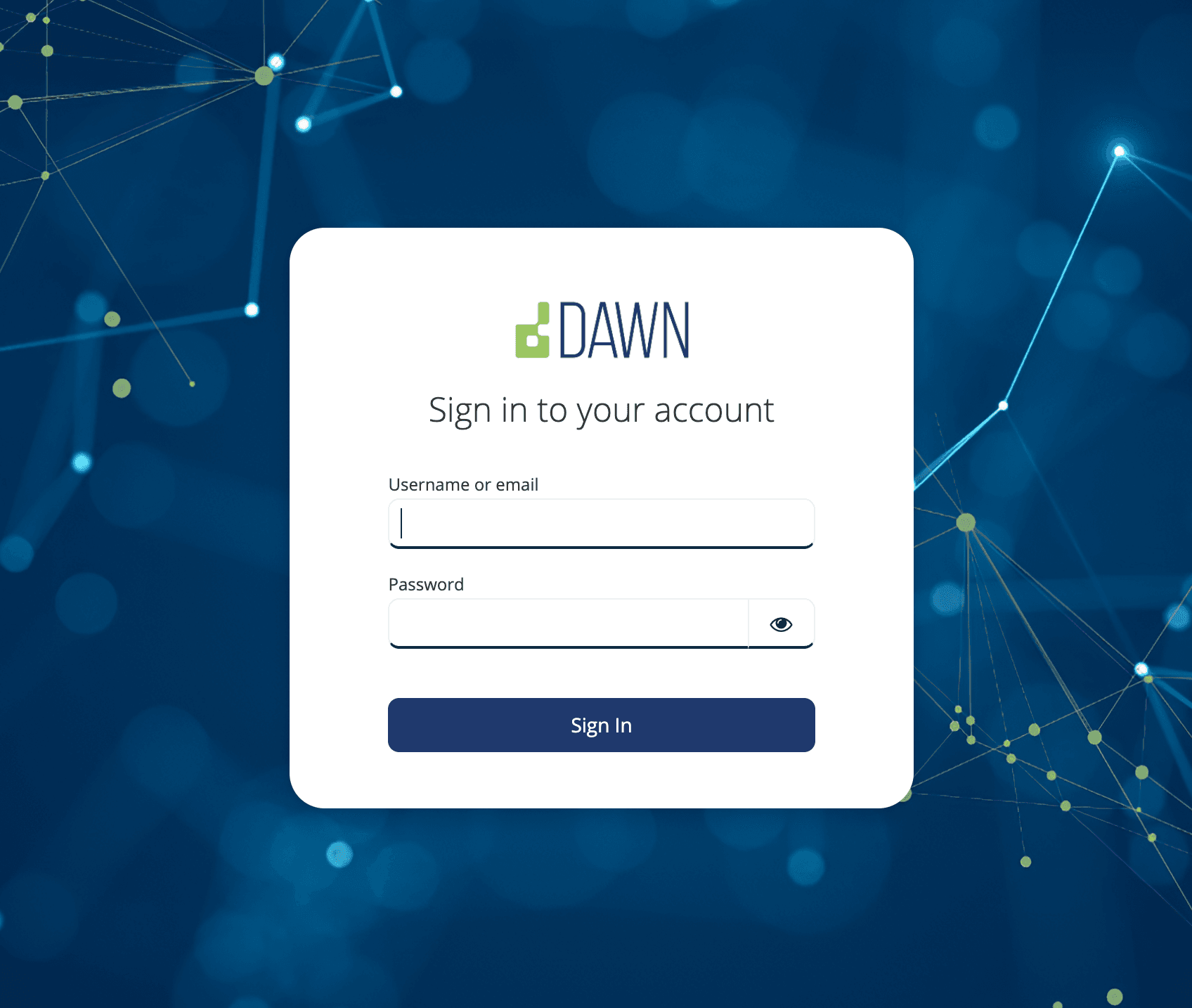
Once you have accessed the page, use the LOGIN button to log into the application.
How do I change my password?
Once logged into the platform, you can update your password using the Manage Profile function.
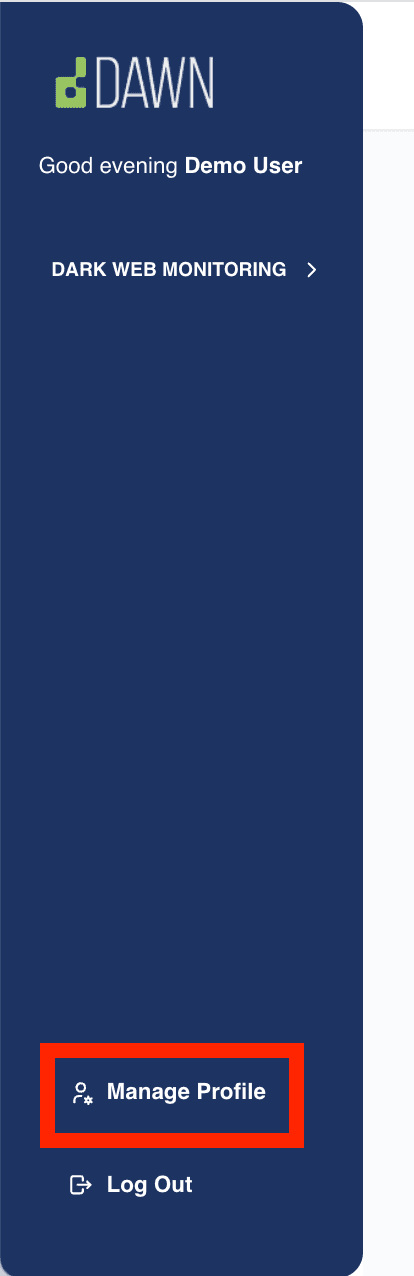
Selecting Manage Profile will open a new browser tab where you can complete your Personal info as well as configure Account Security options.
- Account Security
- Signing in
- Basic Authentication
- Select the Update button
- Follow prompts to specify new password and confirm.
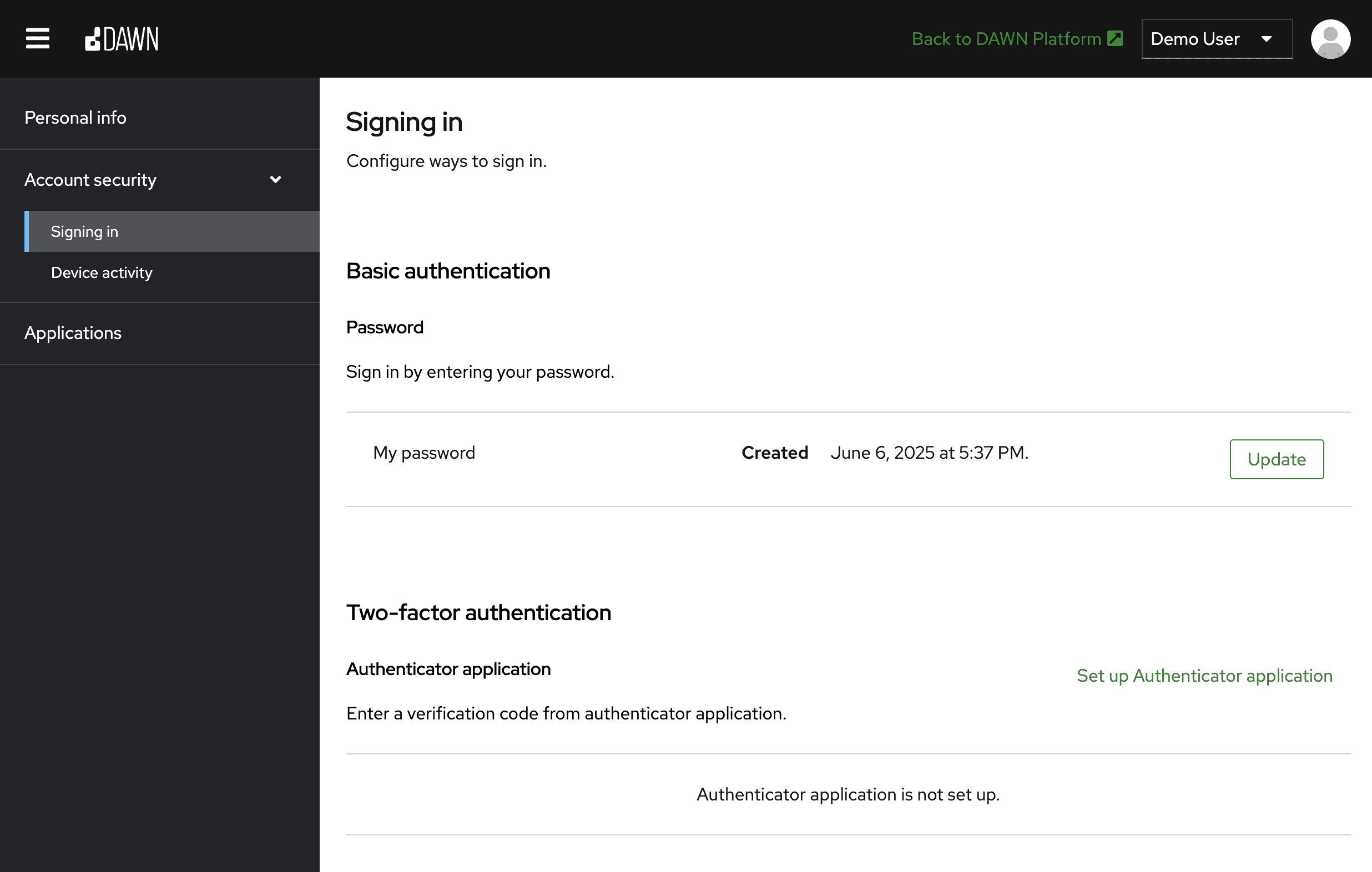
In the Basic Authentication section, you will see some details around your current password and will have an option to Update the password. Select the Update button and follow the prompts to specify your new password and Submit to confirm.
How do I set up Multi Factor Authentication?
Once logged into the platform, you can set up MFA on your account. Follow the same steps to change your password as outlined above.
Instead of Updating your password, choose the option “Set up Authenticator application” which will take you to the Mobile Authenticator Setup page:
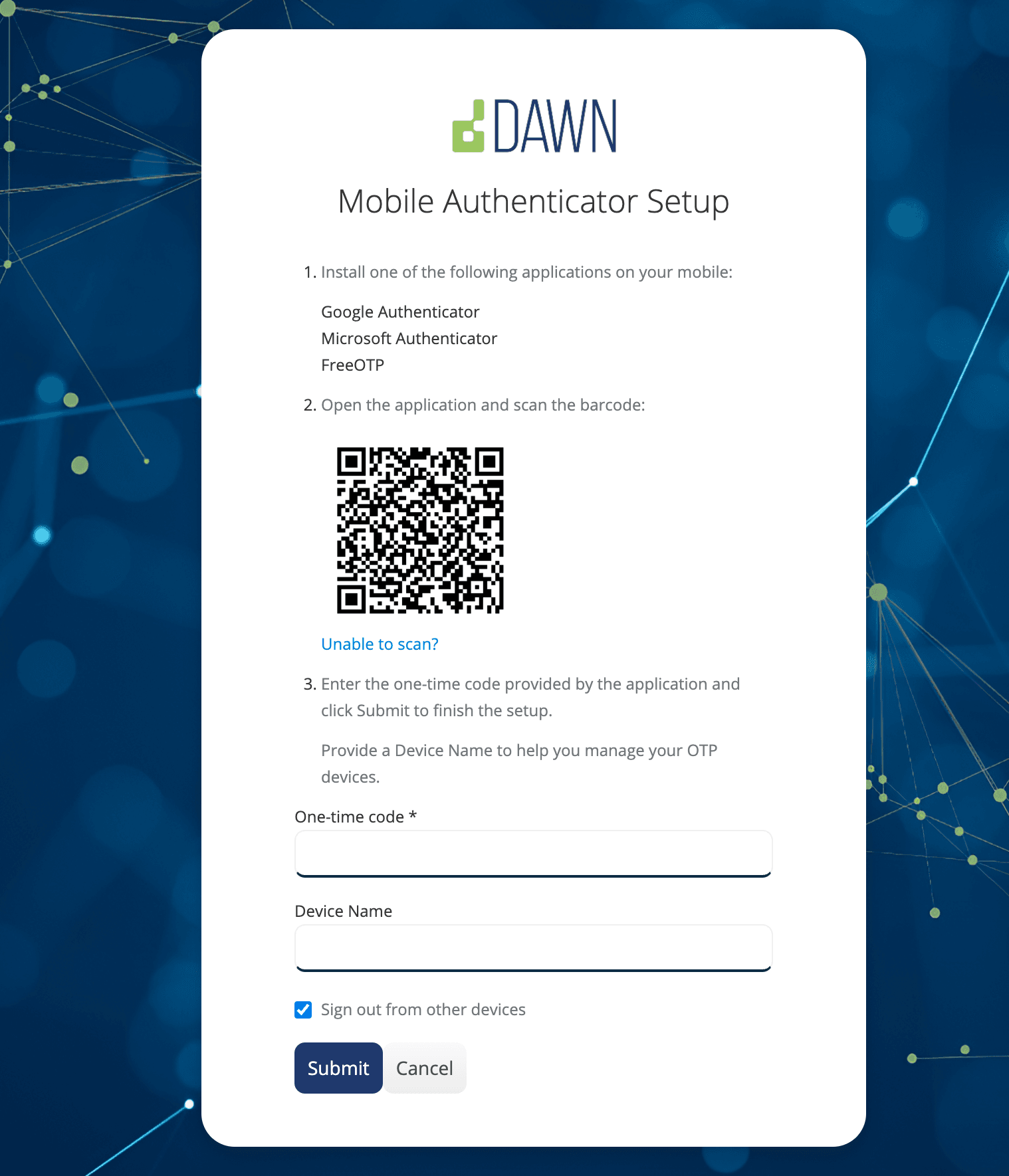
Follow the steps on screen to configure your MFA application.
-
Ensure you have installed your preferred authenticator App from the options provided.
-
Scan the QR code with your chosen authenticator.
-
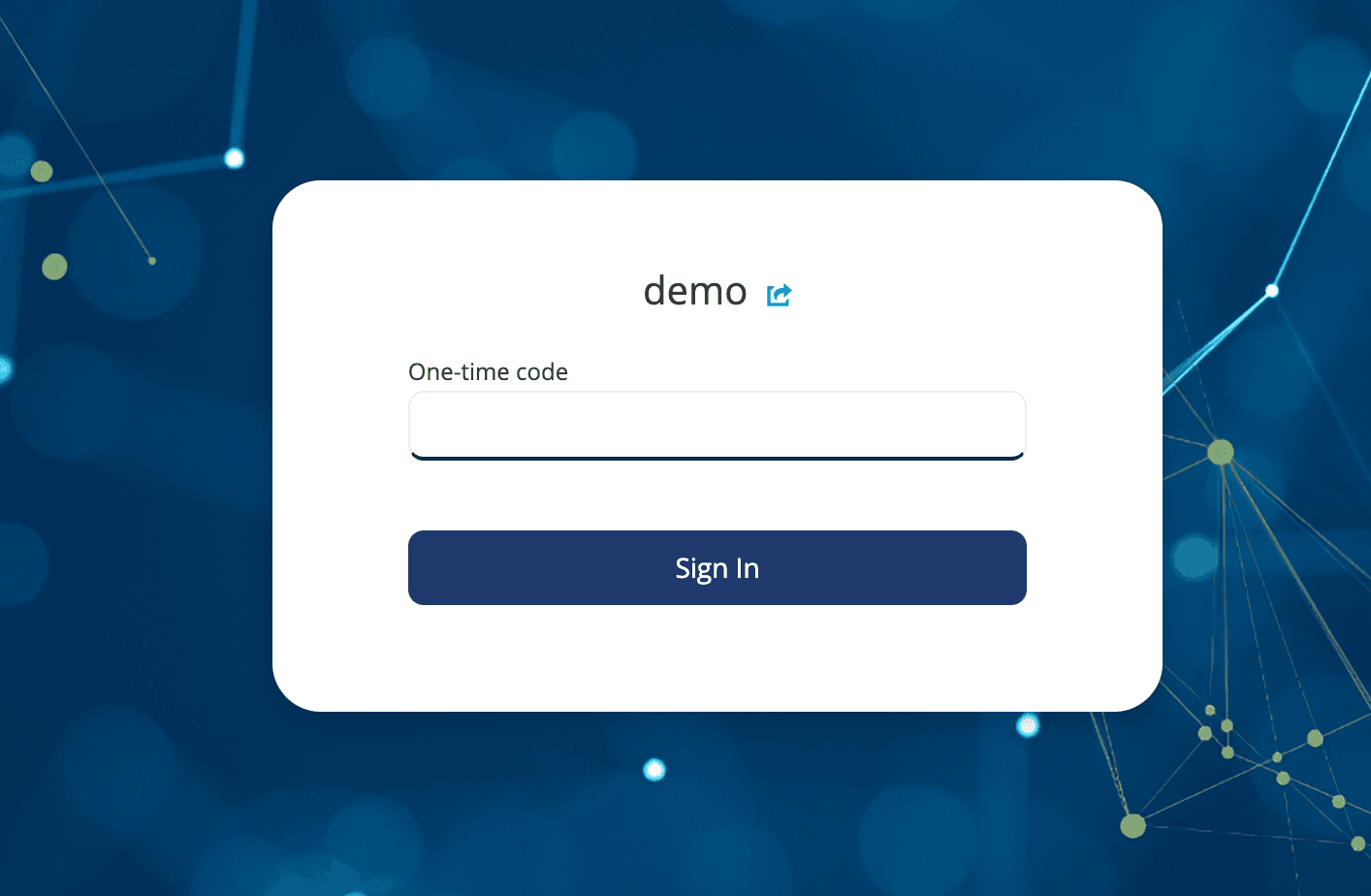
Once loaded enter the One-time code from the authenticator
-
Give your authenticator device a name
-
Submit
NOTE: When you next login you will be prompted for the MFA code before being logged in.
How do I deal with a Forgotten Password?
Should you forget your password, you can follow the “Forgot Password” link from the Sign in page to reset the password:
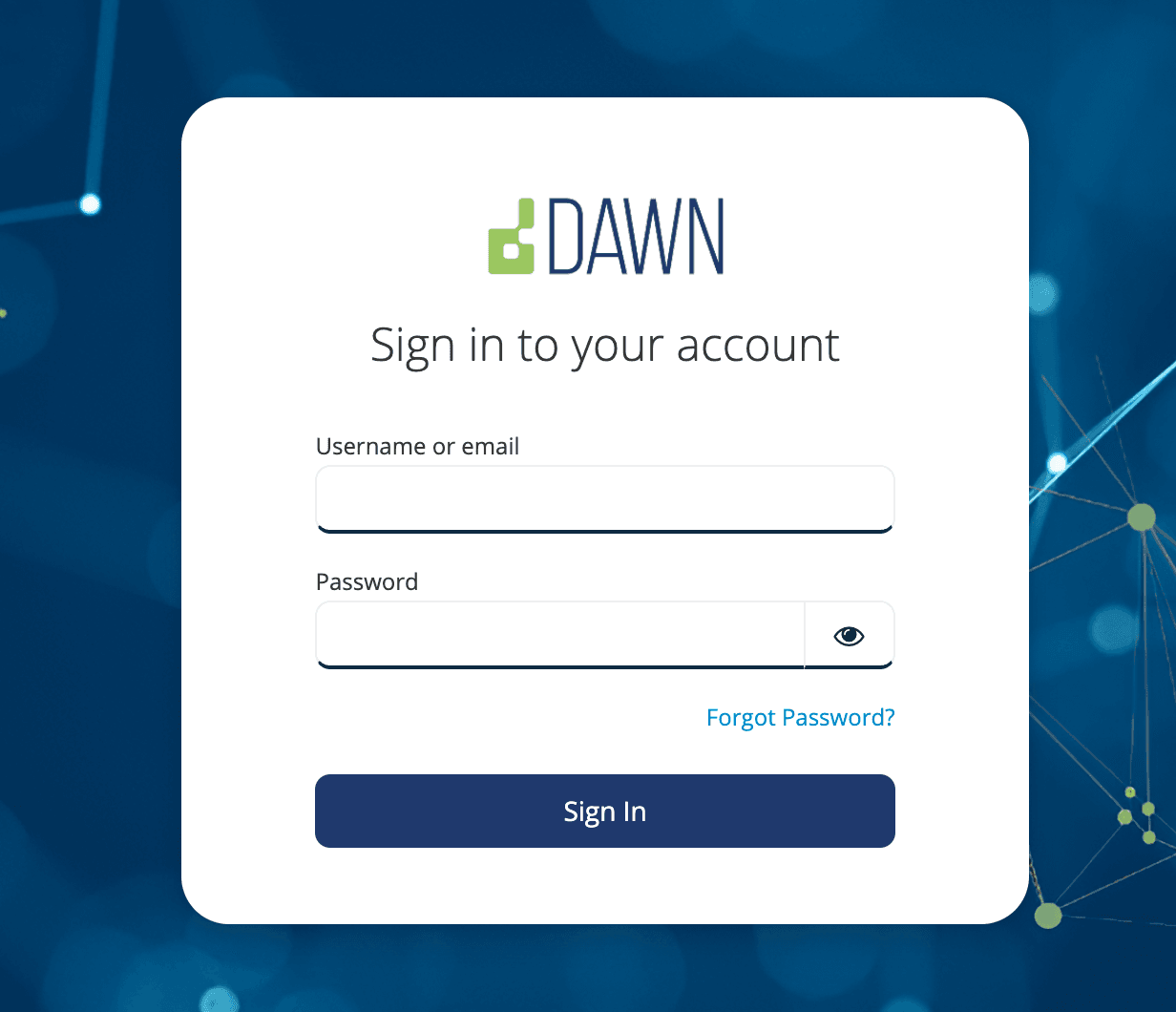
You will be directed to the Forgot your Password form and will be required to enter either your Username or registered email address.
Once you have completed the form with a valid email address you will receive and email with a link to reset the password
The link is only valid for 5 minutes.
Should you receive an unexpected “Reset Password” email you should ignore it.
It is possible that the password reset link could go to your Spam or Junk folders. Always check those folders if you have not received the password reset email in your inbox.